Create and Edit Navigations
Under Craft > Navigations, you can now edit the pages and links that appear in the following sections on your website:
- Main header navigation
- Subheader navigation
- Hamburger menu (Mobile only)
- Footer links
- Editions drop-down menu
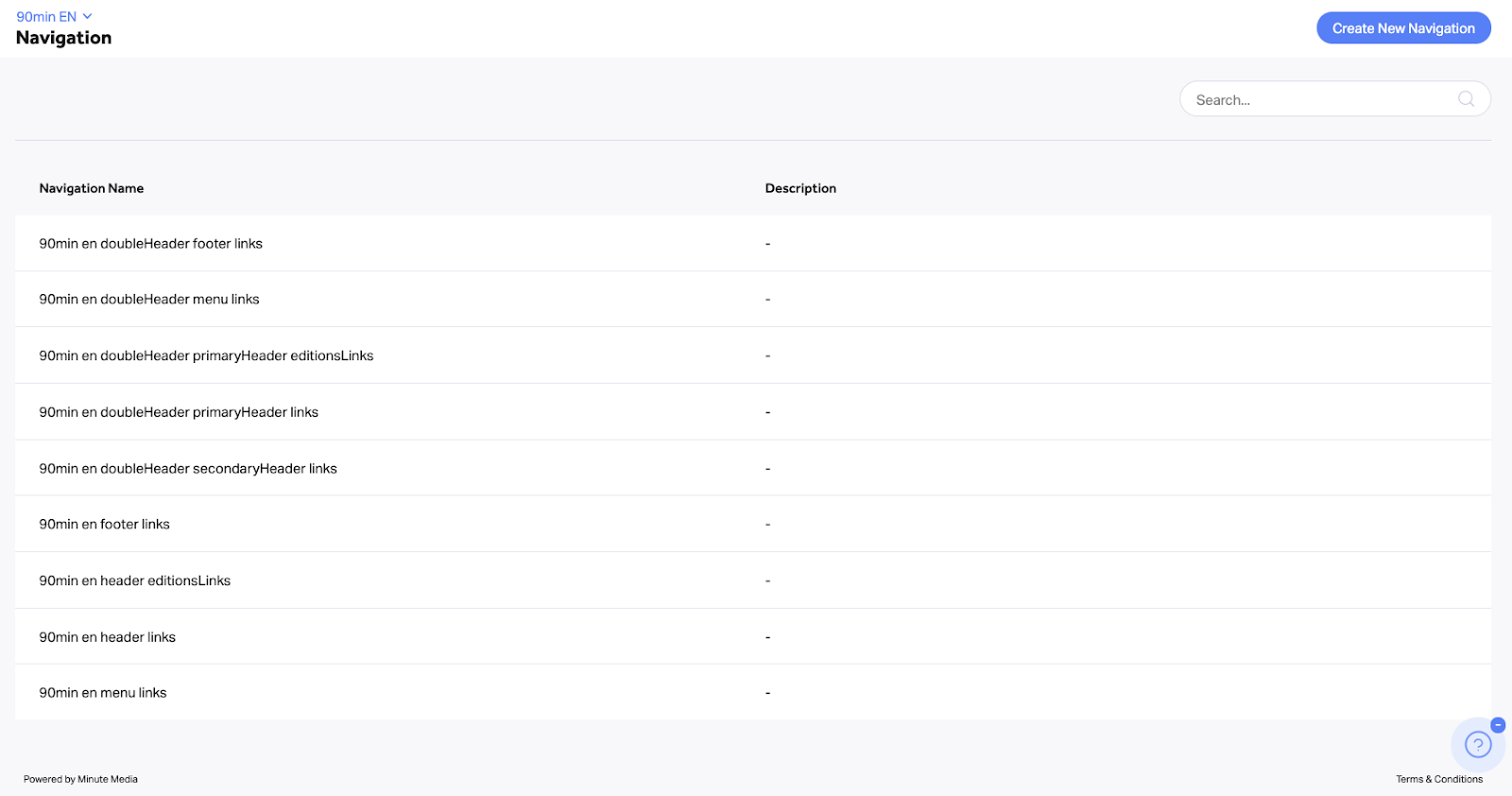
Each list item in the screenshot above represents an independent navigation layout that can be used in different areas on your site. To edit existing navigation, simply click on its name in the list, and you’ll be directed to the editing screen.
Note that any changes made to navigation layouts in this section will automatically apply to relevant navigations that are assigned to the “Header,” “Sub Header,” and “Hamburger” sections in your pages under Craft > Layouts.
We also enable adding sub-pages to each navigation item, up to a maximum of two hierarchies, by dragging and dropping them according to your needs.
When editing/creating navigation, three different entities can be used:
- Pages - Select a page out of your existing website pages
- Links - Insert a link to any destination (consult SEO when using external links that lead outside of your domain)
- Folders - Use navigation items without a URL (clicking on these items on your website won't lead to a URL)
To edit existing navigation:
- Click on the navigation you want to edit from the list
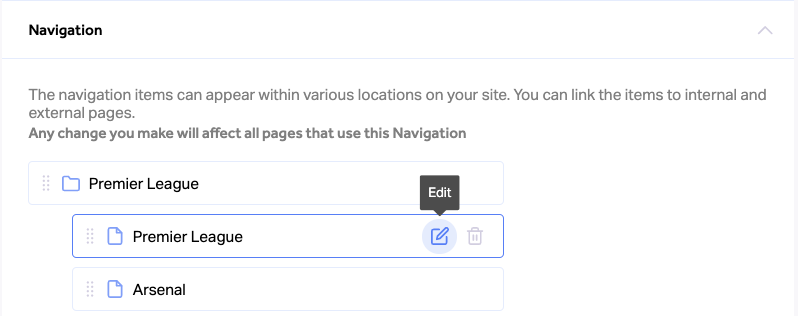
- You can change the display order of links and categories in the navigation by dragging and dropping
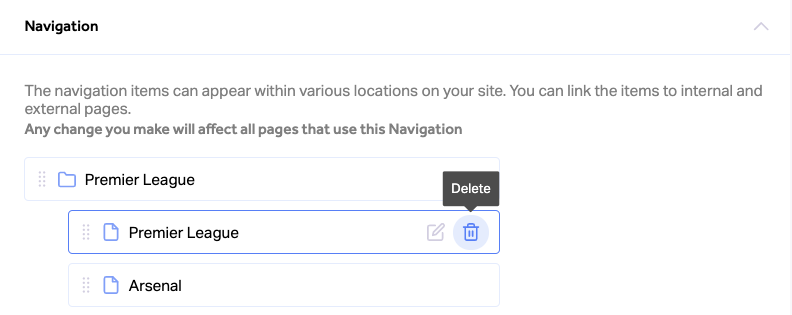
- To edit a specific navigation entry, hover over it and click on the “Edit” icon
- Make the needed changes in the editing screen popup
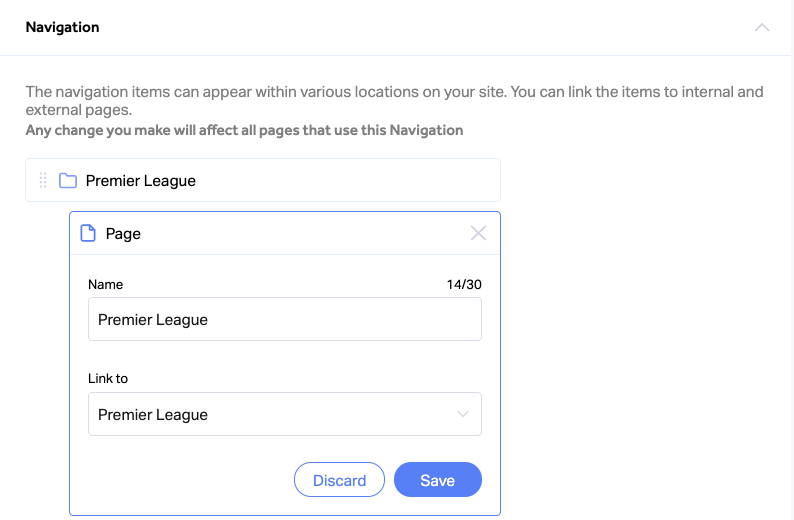
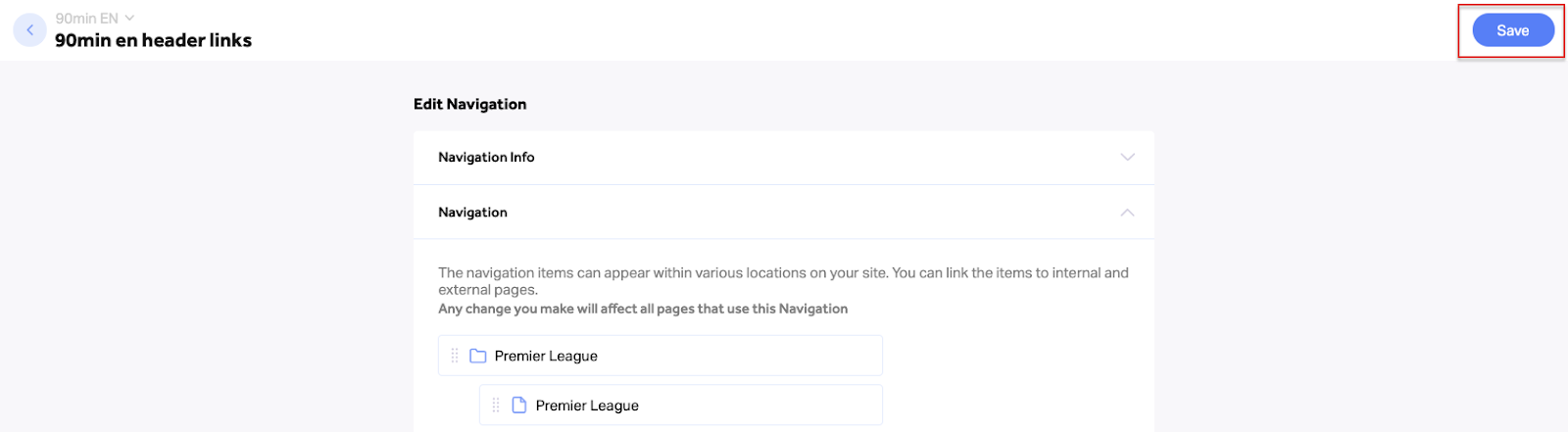
- Click “Save” to update your changes for the specific entry
- To delete a navigation entry, hover over it and click on the “Delete” icon
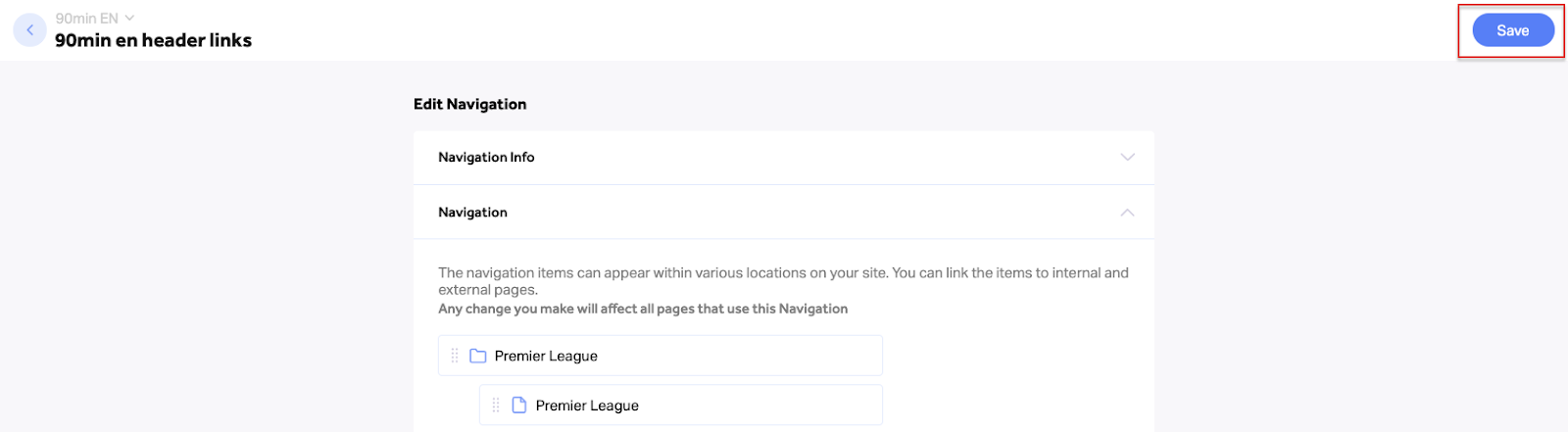
- Click “Save” at the top right corner to save and publish all changes to your live website
To create new navigation:
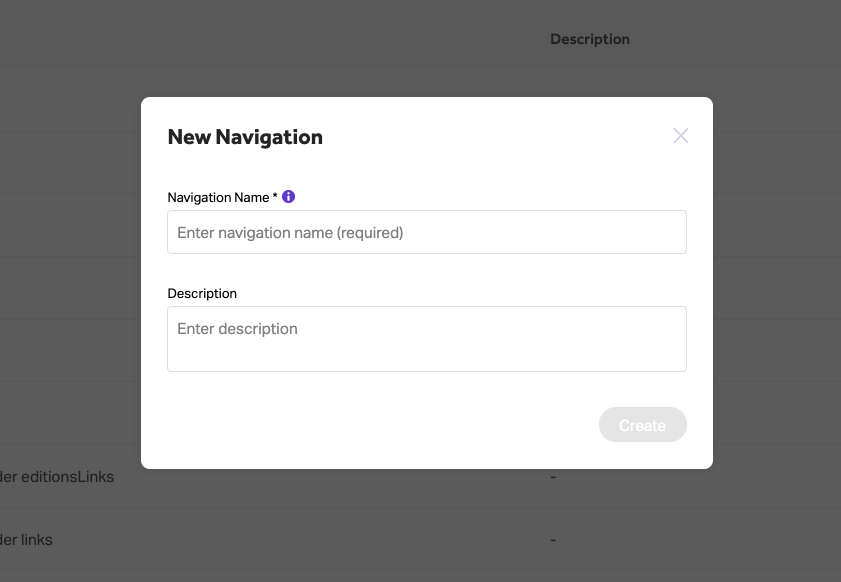
- Click on “Create New Navigation” at the top right corner of the page
- Enter a navigation name and description (optional)
- Next, define the pages and links that will appear in each navigation category
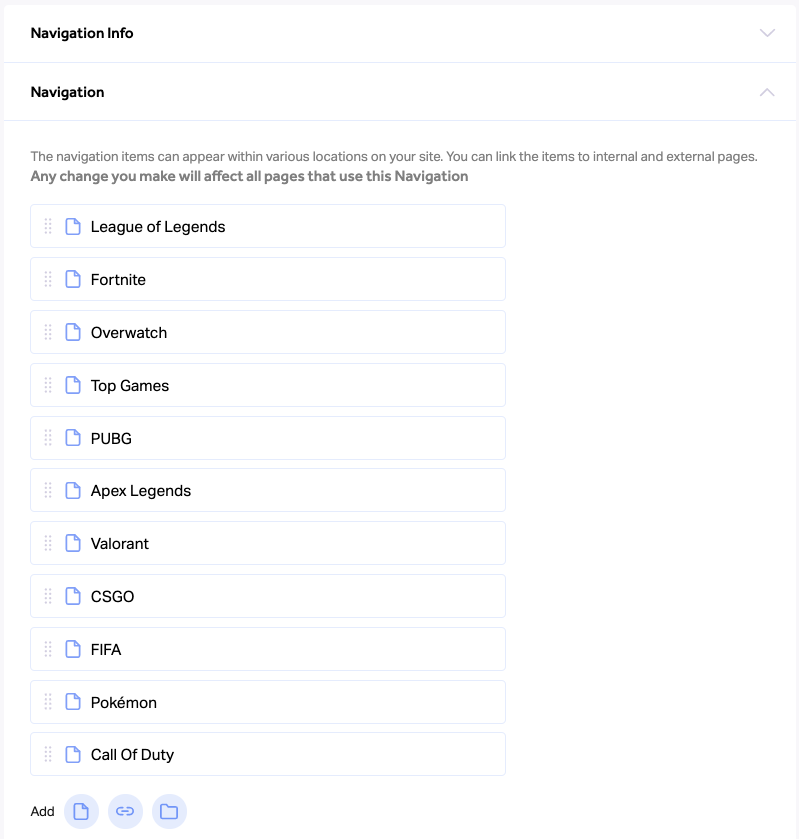
- You can change the display order of links and categories in the navigation by dragging and dropping
- Click “Save” at the top right corner to save and publish all changes to your live website