Feed Pages
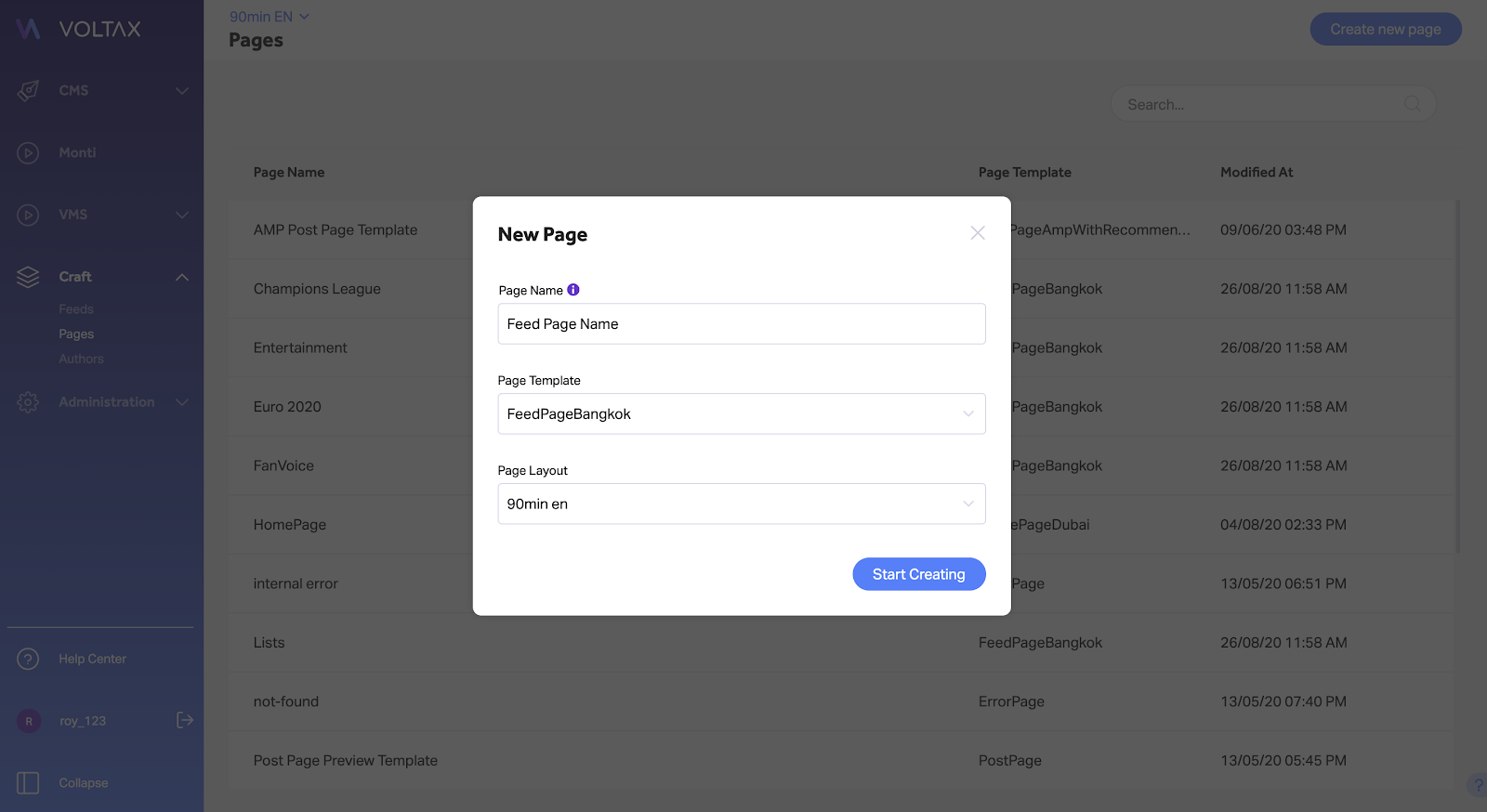
To create a new feed page, enter the "Pages" section within Craft and click on the "Create new page" button on the top-right corner of the screen.
Then you can name the page (for internal purposes), select the Page Template you desire, select the Page Layout, and click on "Start creating.”
We now support 8 Feed Page templates:
1. FeedPage Bangkok
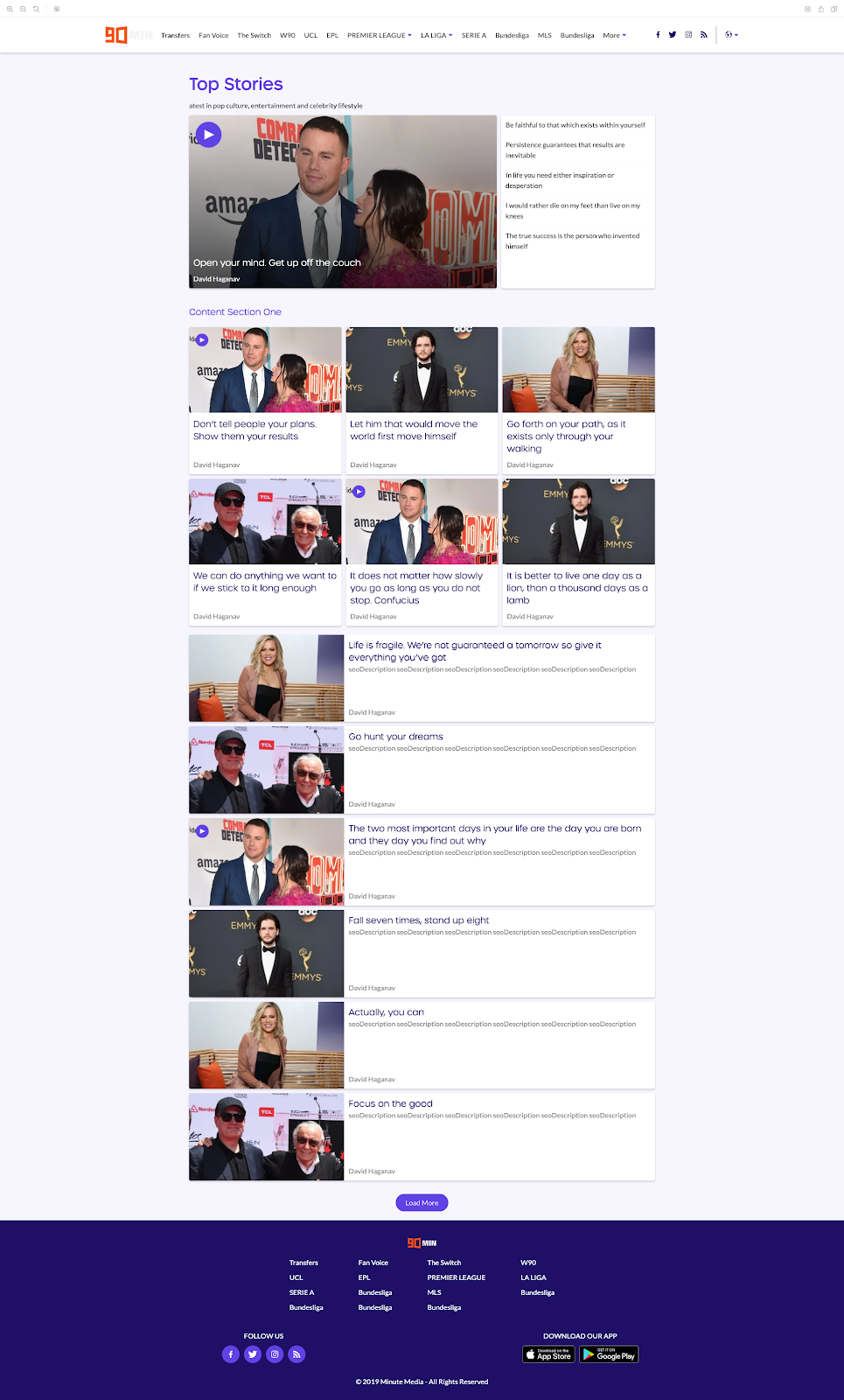
2. FeedPage Mykonos
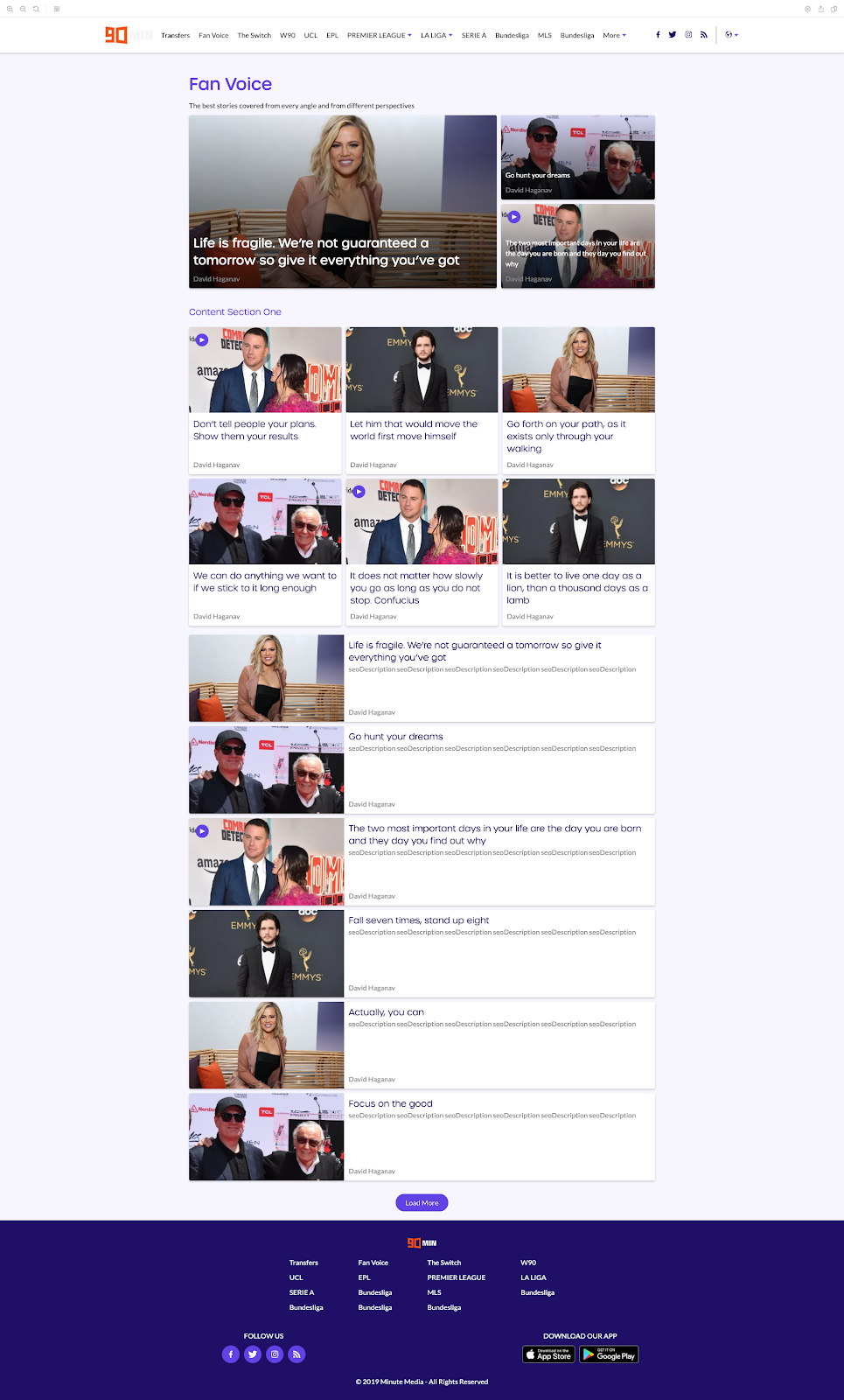
3. FeedPage Rome
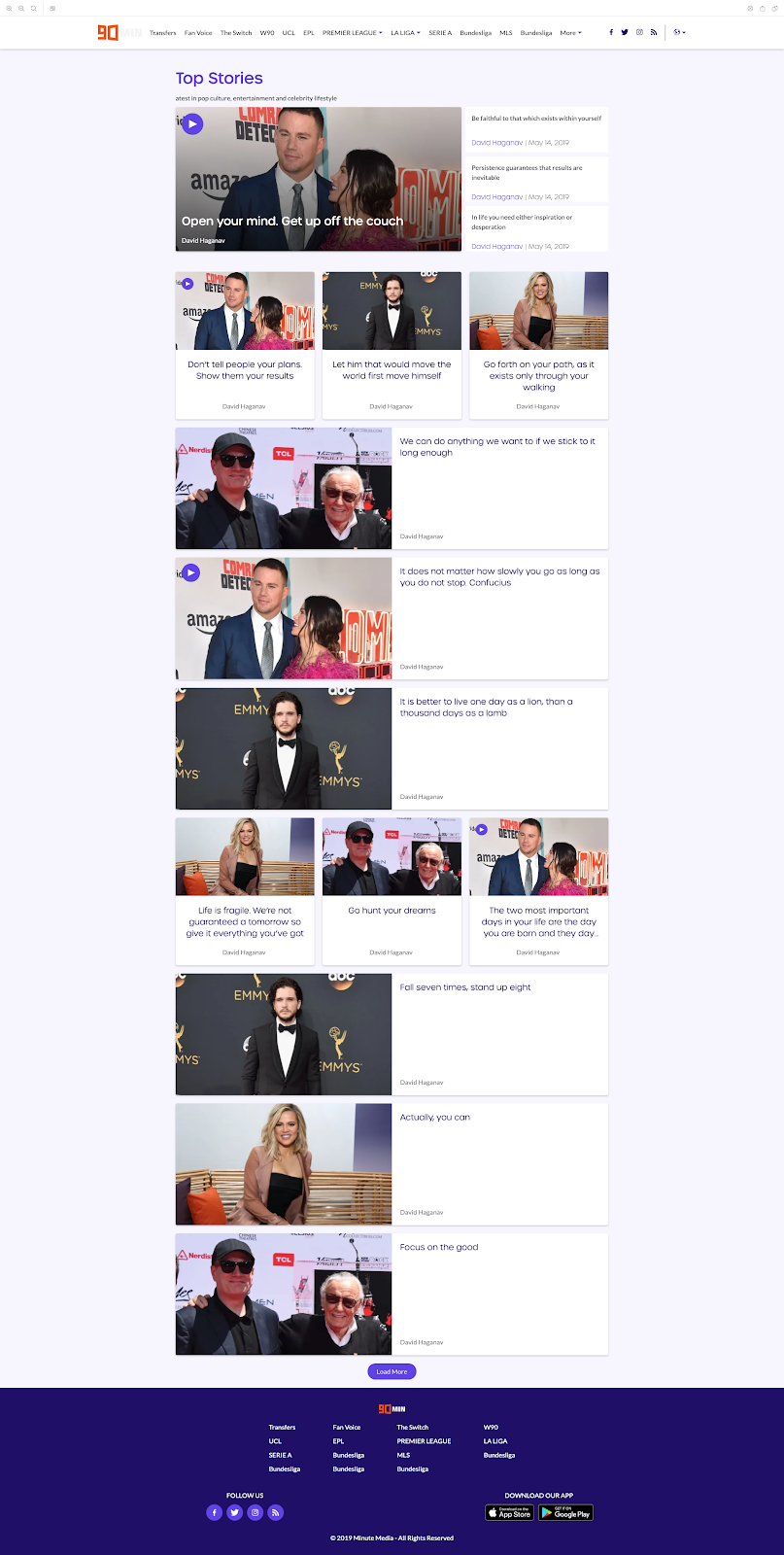
4. FeedPage London
a. Used only by TheDule
b. Identical to Bangkok template except for a different navigation component
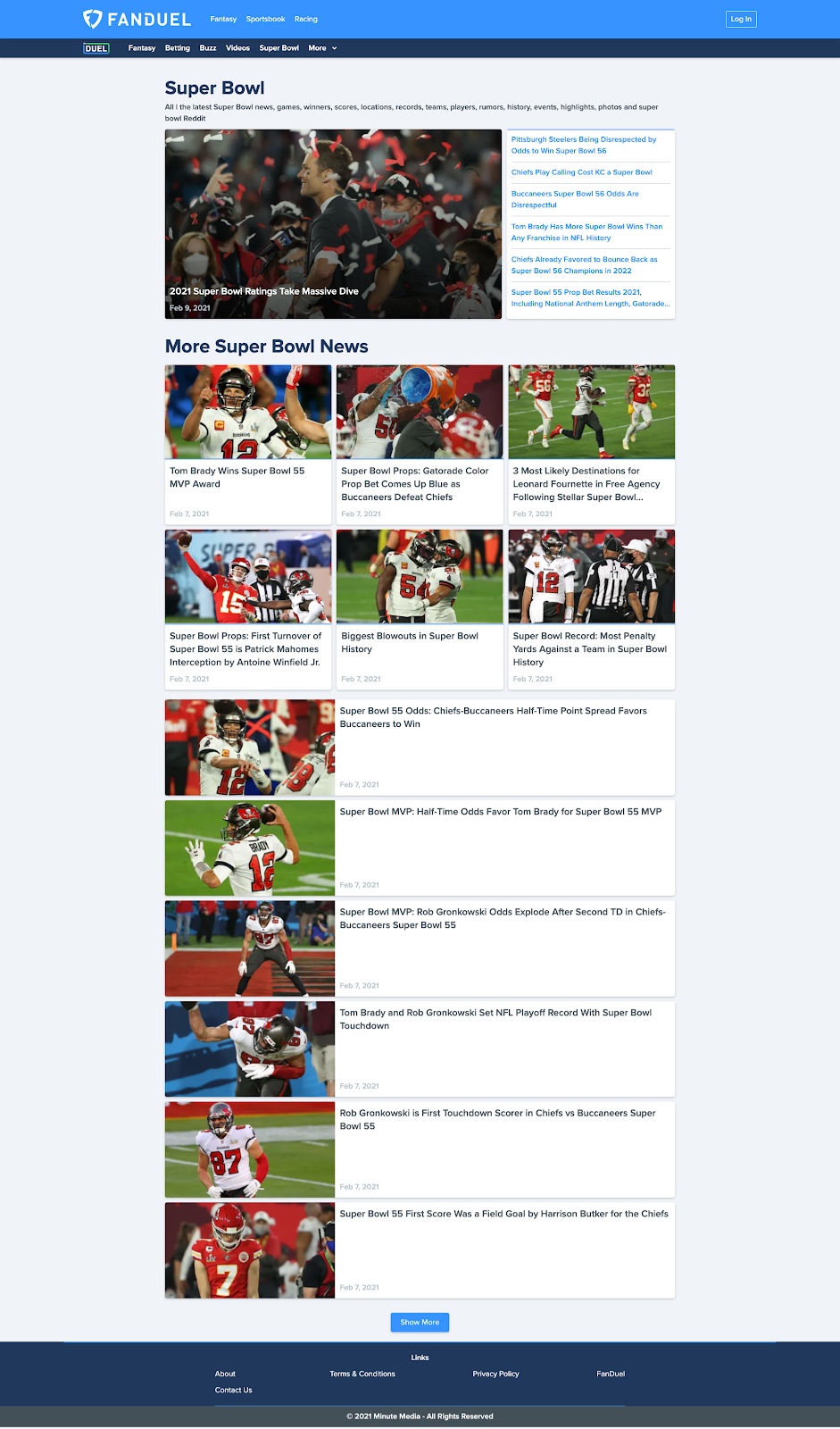
5. FeedPage Chicago
a. Used primarily by TPT
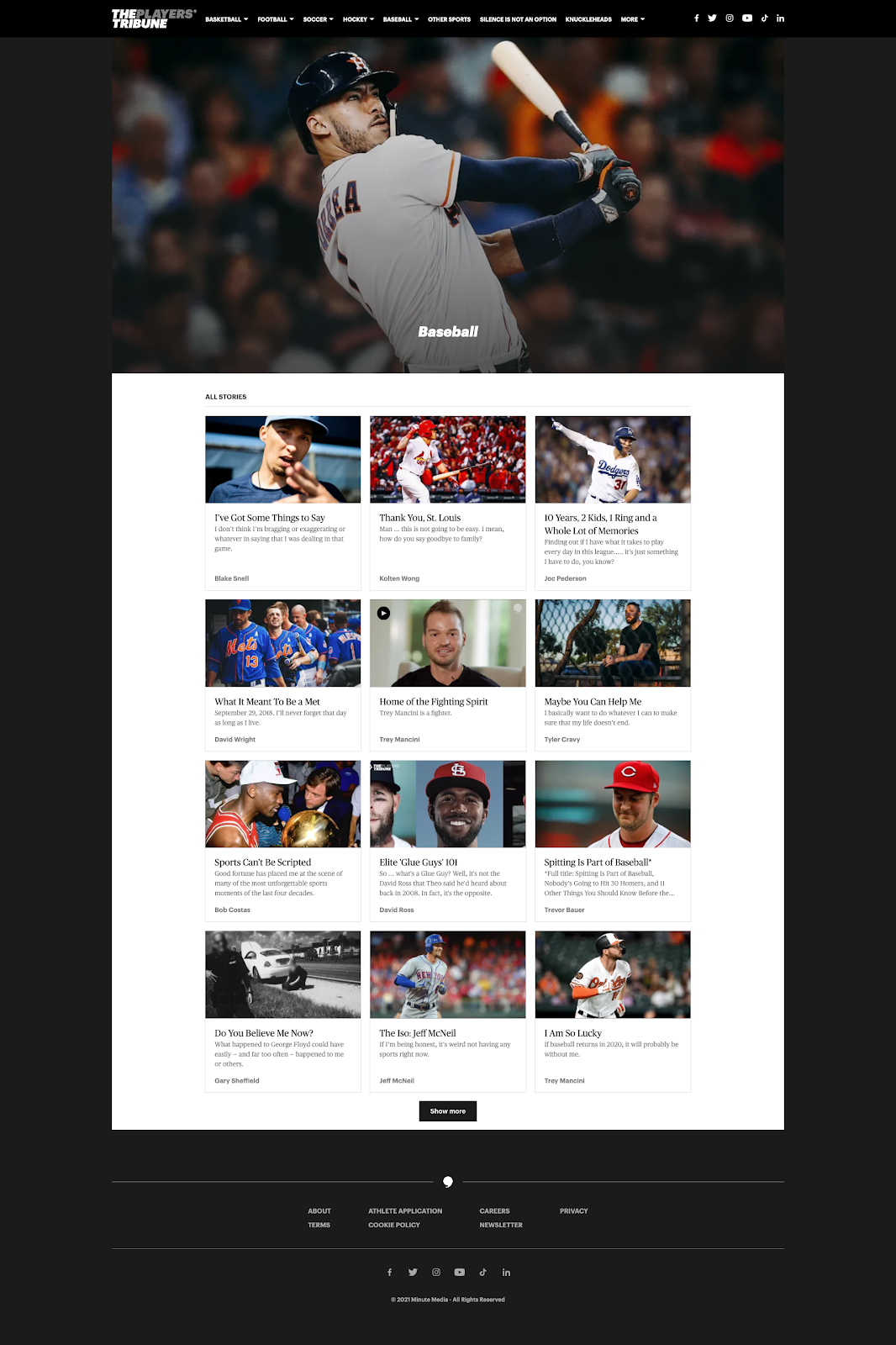
6. FeedPage Orlando
a. Used primarily by TPT
b. Identical layout to Chicago template, supports displaying a brand logo for sponsored content
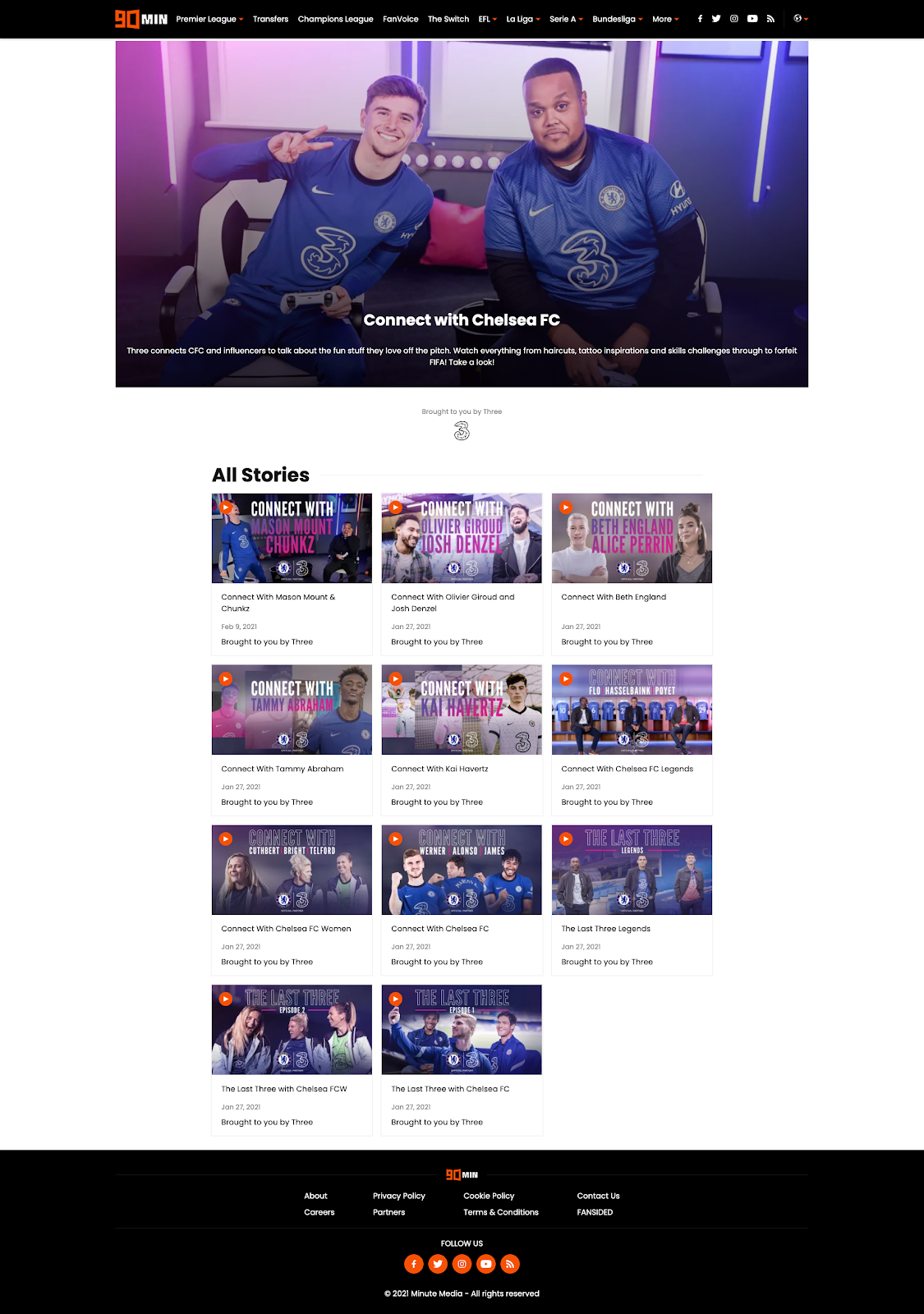
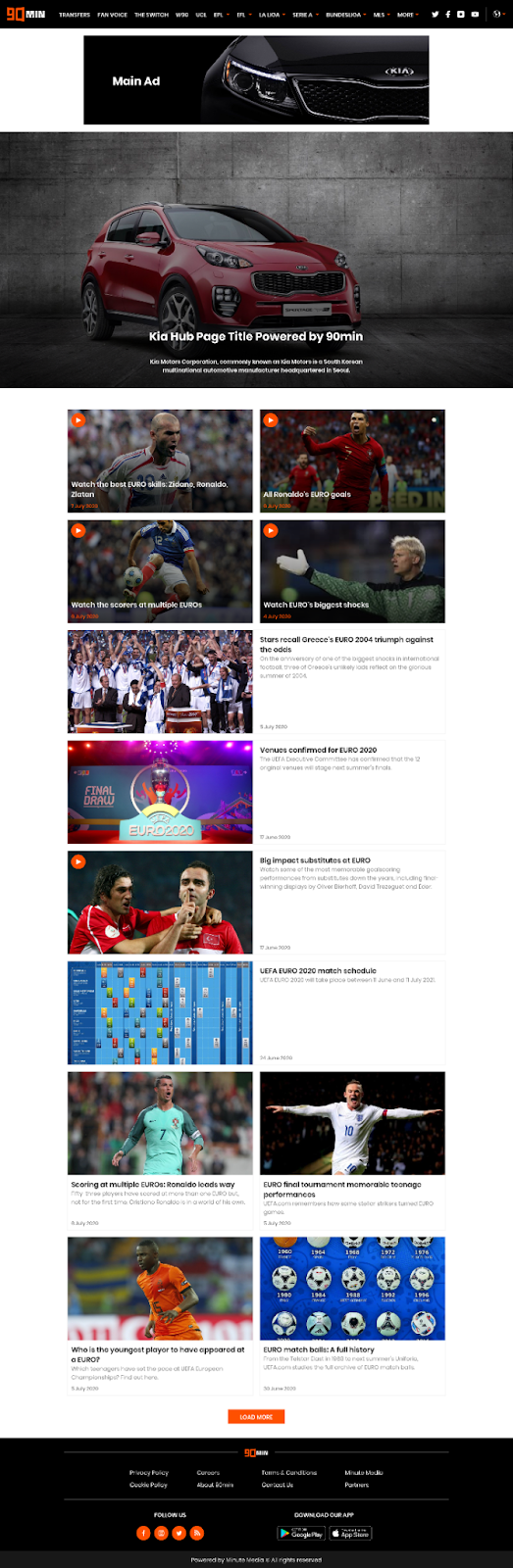
Additionally, we support 2 Hub page templates for commercial and direct campaigns:
1. FeedPage Lisbon
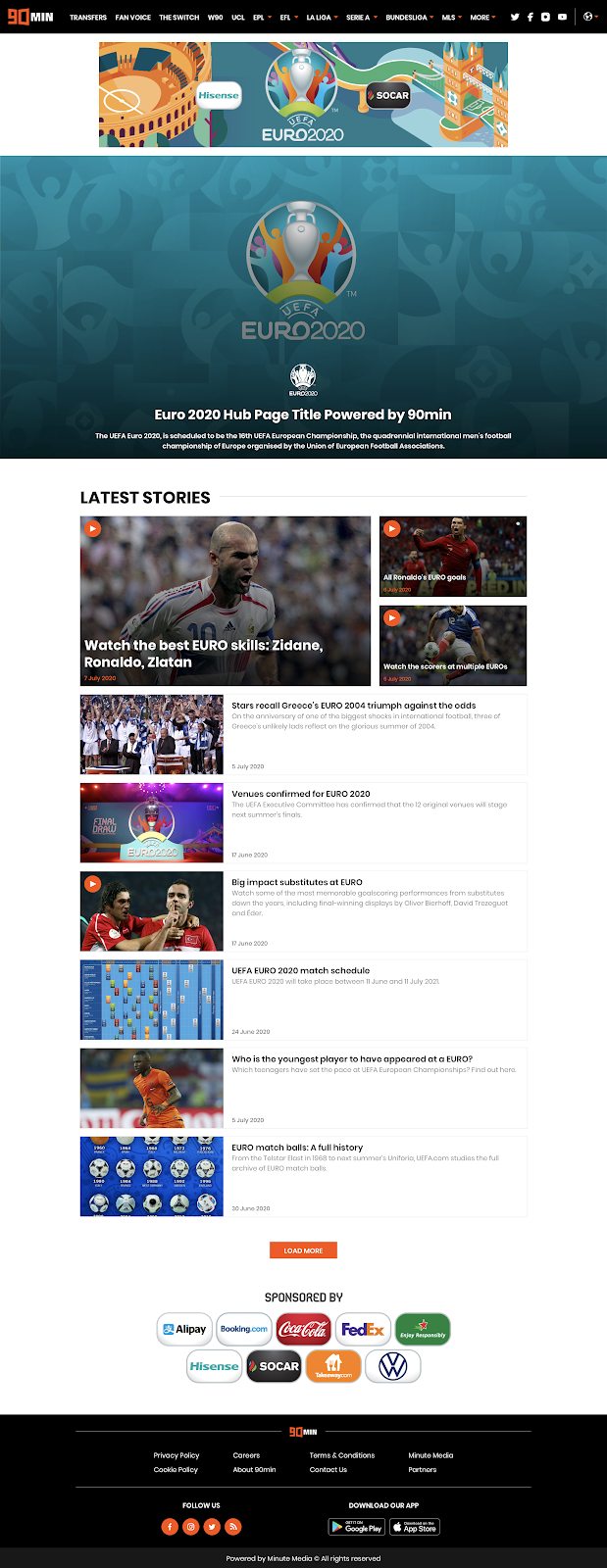
2. FeedPage Mumbai
The Feed Page editing screen is compiled of the following sections:
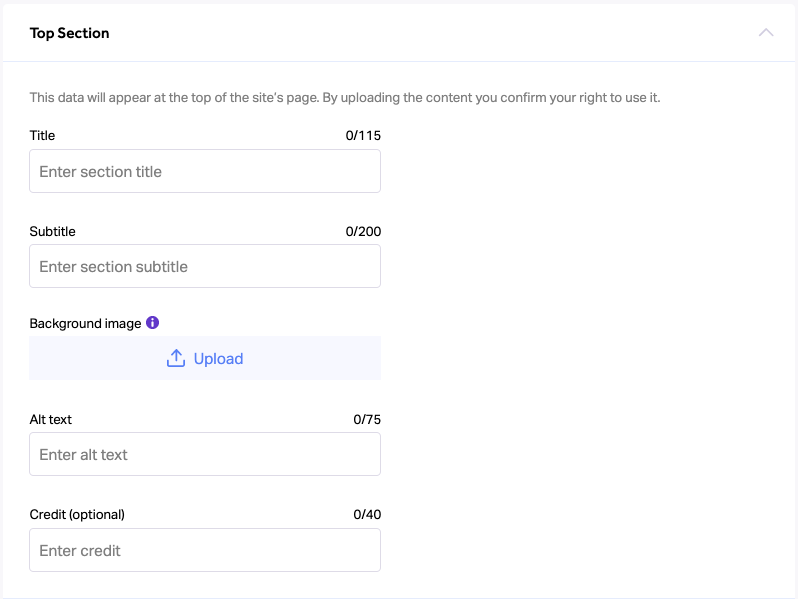
Top section
- Title
- Subtitle
- Background Image (relevant for the "Orlando" and "Chicago" templates only)
- Alt text **
- Credit (Optional) **
- Select feed (relevant for the "London" and "Bangkok templates only)
- Searchable field - the user can search for a specific feed to feature in this section
** - These fields are not visible to the user on the actual feed page
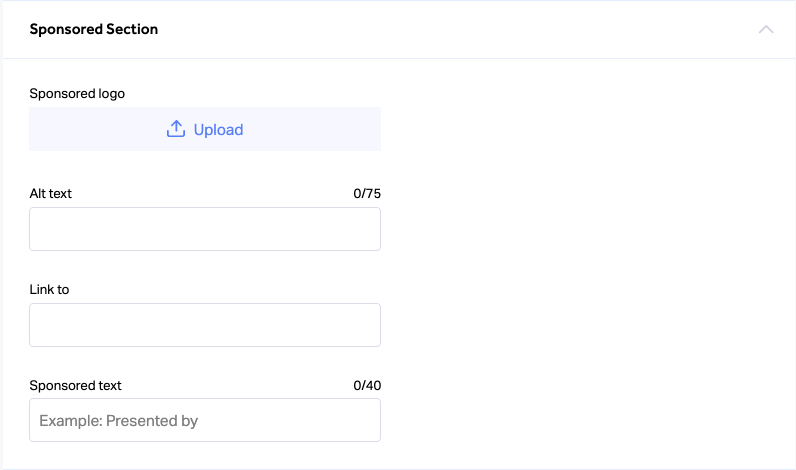
Sponsored Section (relevant for the "Orlando" template only)
- Sponsored Logo
- Logo Alt text
- Link to (Sponsored URL)
- Sponsored text
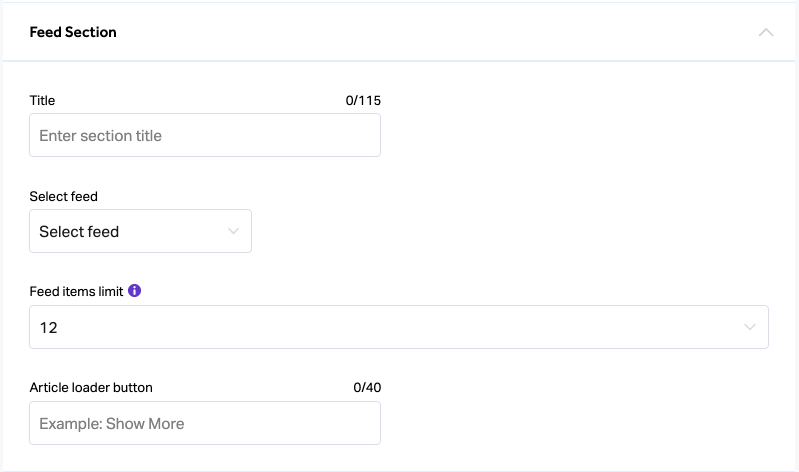
Feed Section
- Title **
- Select feed
- Feed limit (limit options vary according to the template) - Here, you can define how many posts will appear on the page within its feed section
- Article loader button (referring here to the "Show More" button at the bottom of the page)
** - These fields are not visible to the user on the actual feed page.
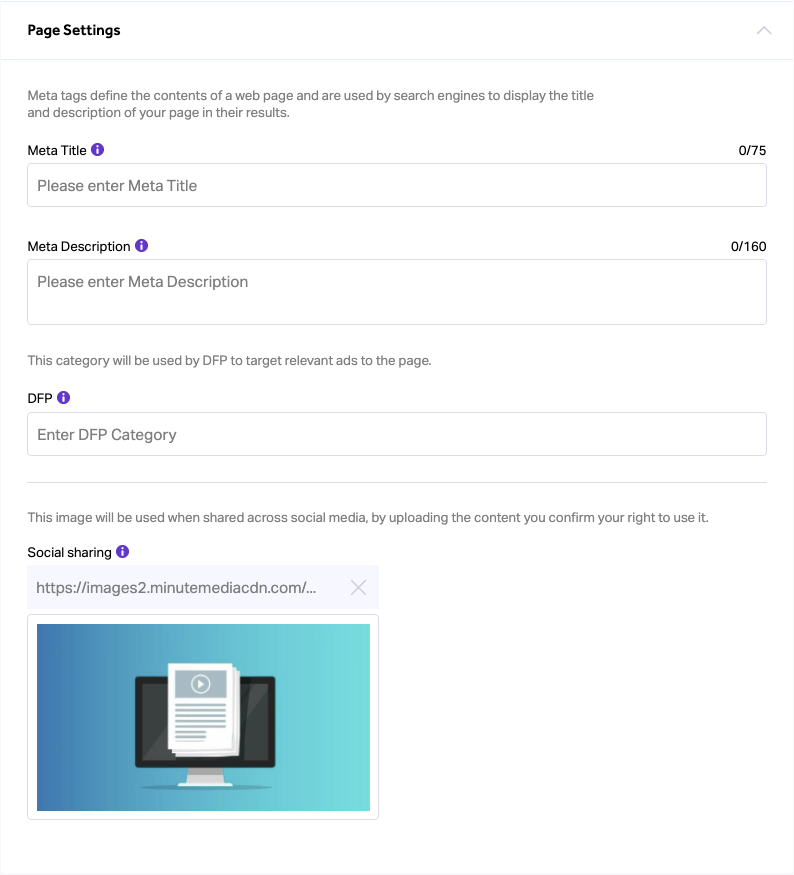
Page Settings
- Meta title
- Meta description
- DFP category (type in the exact DFP category for targeting the relevant ads to the page)
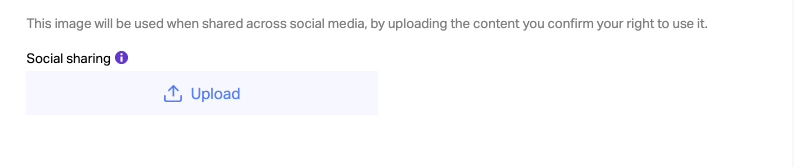
- Social Sharing image - This image will be displayed when sharing the page URL on various social platforms.
-
- Recommended to use 16:9 image in full HD resolution (1920x1080)
- For existing pages, the image used here will be the predetermined site logo. However, when creating a new page, a generic default image will be used. To change this image, click on “x” and then on “Upload” to load a new image.
-
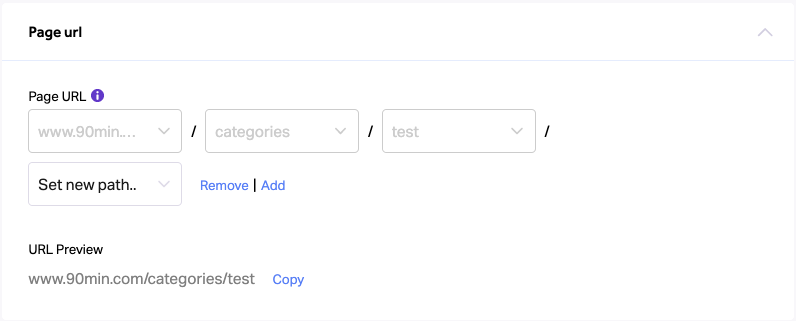
Page URL - Use this component to build the Page's URL
Important Notes:
- These pages can be created/edited only by users with Craft permissions
- All fields are mandatory in order to create (Publish) a new Feed Page
Adding “Last Updated” Timestamp to Post Page
If you edit a post page and you want the most recent update date to appear, follow these steps:
- Via Craft, click on the “Pages” section
- Search for your site’s post page template
- Click on the page you would like to edit
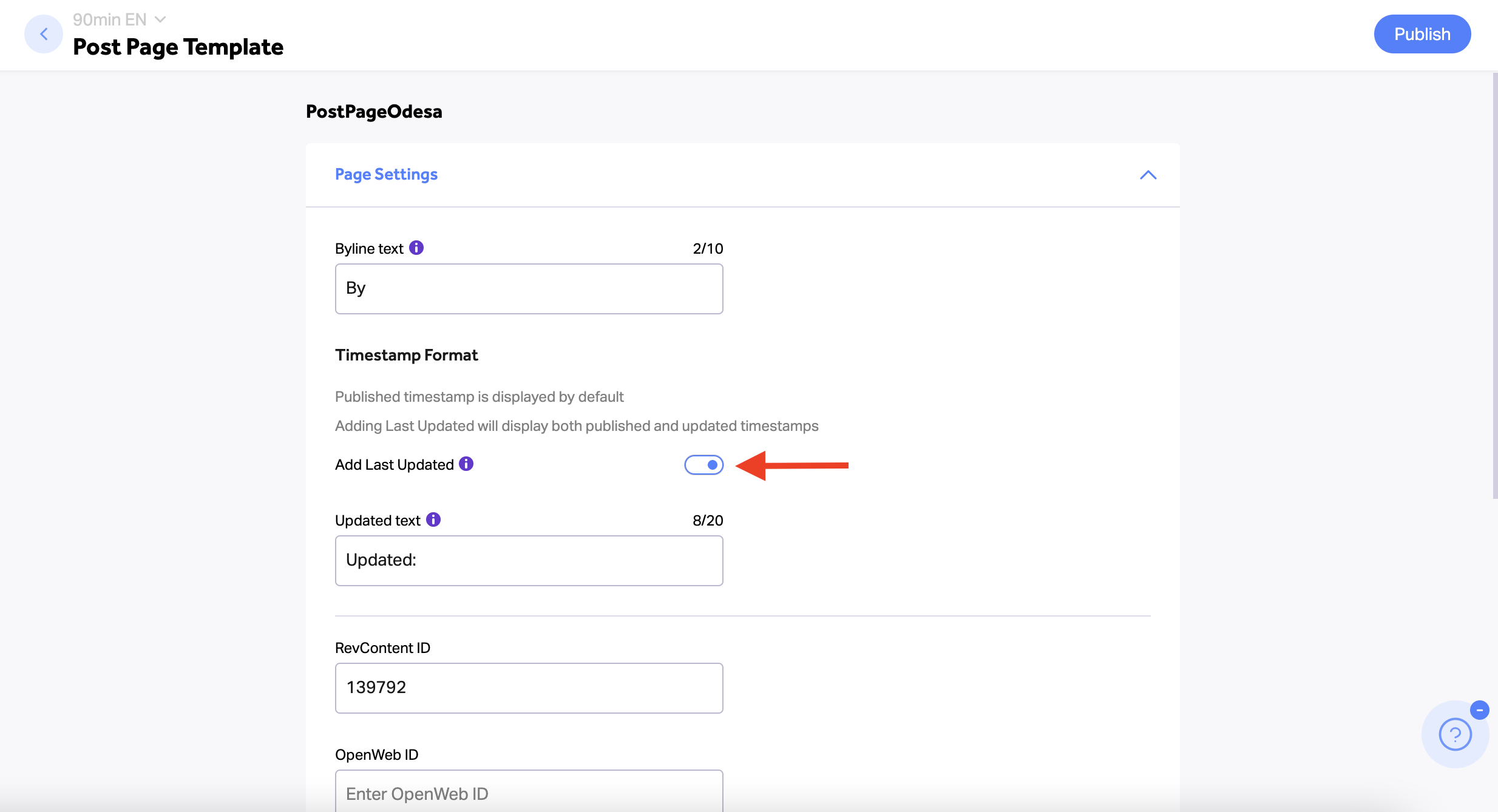
- Click on the ‘Add Last Update’ toggle
- You may edit the “Updated” text if necessary. This is especially important for sites in languages other than English.
- Click on “Publish” to save the changes