After finishing writing your article, you can customize each article's social card's data (title, image, and description) as it appears when shared by your readers across the social networks. By default, the social sharing modal will take its field's data from the article if it's not changed.
To change the social sharing data in the editor, follow these steps:
- Open the article in the editor (Can be before/after it's written)
- On the right side of the Editor Menu, click on the ‘Social Sharing’ button
- Change the fields you wish to customize for the social sharing card (notice the tooltips for restrictions)
- Click Save
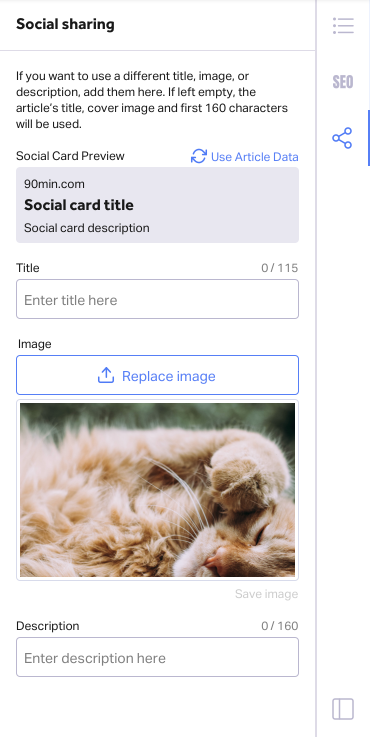
The following logic will be used in case you leave any of the social card's fields empty:
Title- The article's title will be used.
Image- The article's cover image will be used.
Description- The article's first 160 characters will be used.
Once you fill in data within the social card fields, you'll be able to see the card's preview on top (it will update simultaneously with every change made).
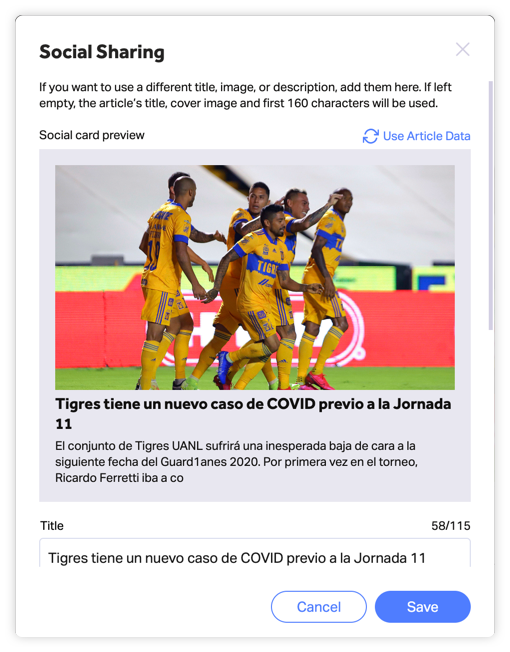
Note that at any time, you can also click on the Use Article Data button to insert the data from the most recent version of your article into the fields accordingly. Clicking on it will override any data that already exists within the fields.
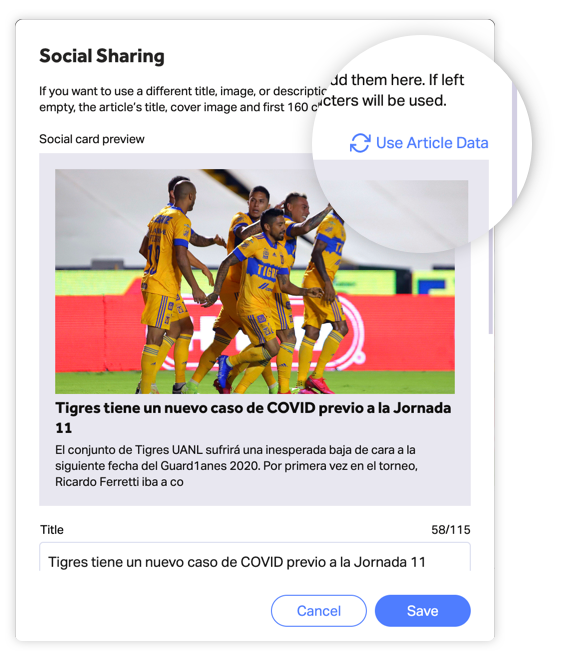
Keep in mind: If you edit a post's title/image after it was already submitted or published, make sure to adjust the social sharing fields as well before re-submitting it.